See version history
Updated November 12, 2026 · 1 min read
Version history lets you compare earlier drafts of a document or restore one without losing the current text.
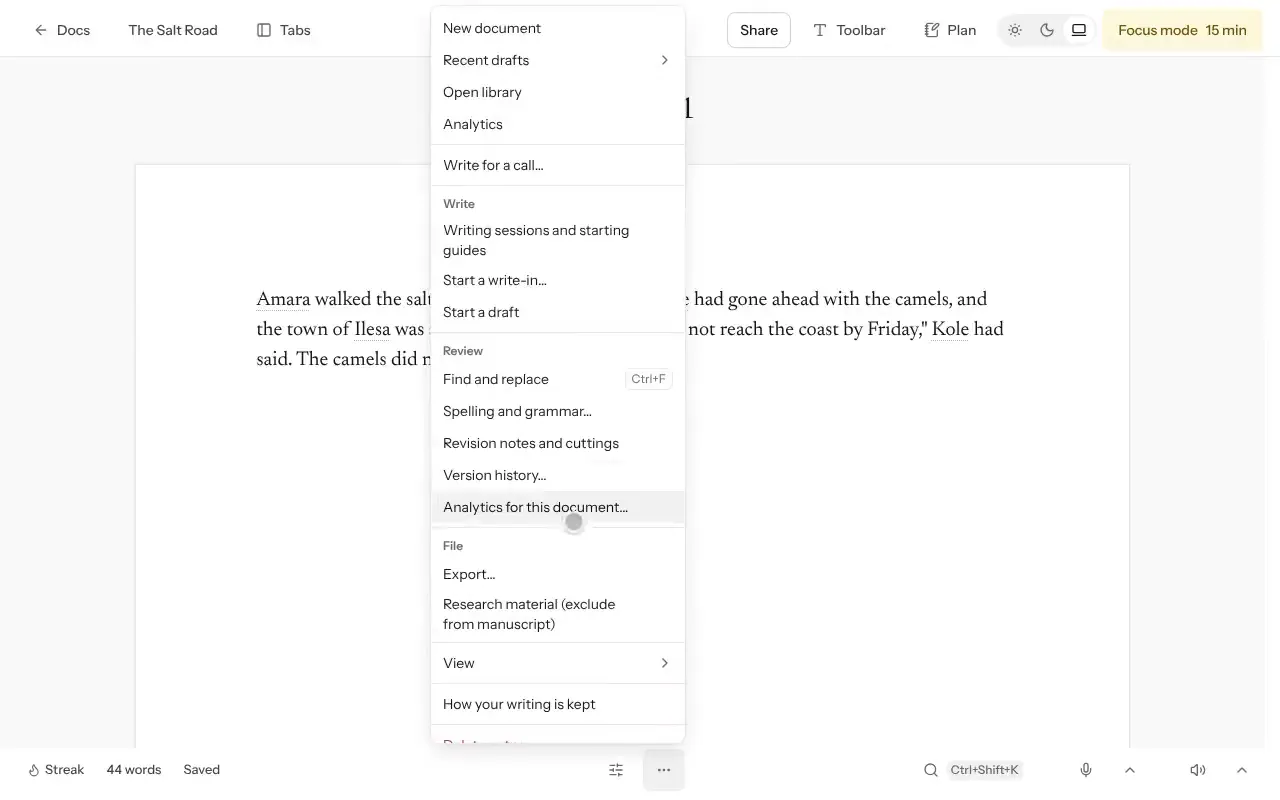
Open the document, select More, then Version history…
Select a version to read it. Use Compare with to see the differences.
To return to an earlier draft, select Restore this version. Missa saves the current text first.
Other options
- Use Name current version before a major edit. Find these later with Only show named versions.
- Select Make a copy to create a new document from an earlier version.
- Use Replay to see how the document changed from its first version to the latest.
Name important versions—for example, “Before revising chapter two”—so you can find them without opening every draft.
Was this article helpful?