Write a novel
Updated November 12, 2026 · 3 min read
A novel project in Docs keeps your chapters, characters and notes in one place, in the order the book will be read.
Start the book
In Docs, select New document, then Novel.
Choose Novel, Mystery novel, Thriller novel or Romance novel.
Give the book a Title and select Create project.
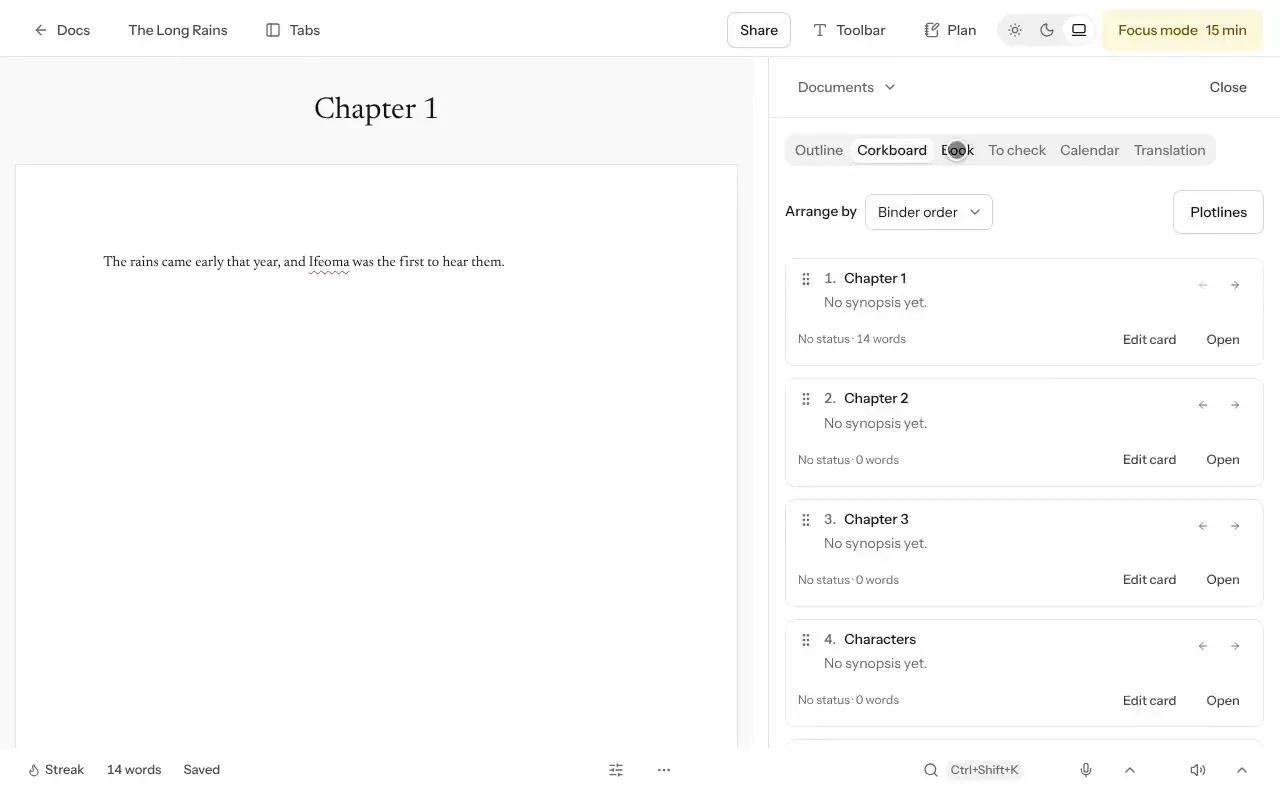
The project opens with three chapters, a Characters document and a Notes document. Open Chapter 1 and start writing. Each chapter is its own document, so a long book stays quick to open and easy to move around.
To add a chapter, open the project and select New document. Rename a chapter by selecting its title at the top of the page.
Plan the book
Select Plan to open the panel beside the page, so you can plan without leaving the chapter.
- Outline lists every chapter in order with its word count. Select one to open it, or show it beside the page.
- Corkboard shows each chapter as a card. Drag a card to change the chapter order, and select Edit the card for a chapter to write its Synopsis, Status, Point of view and Word target.
- Book compares the manuscript with the usual length for its genre, marks the Turning points once three chapters are written, and shows where each character first appears.
- To check collects every TK in the text. Type TK wherever you need to come back to a fact, a name or a date.
- Edit as one text opens the whole manuscript as a single document when you want to read it straight through.
Keep track of people and places
In Plan, switch to Notes and choose People & places.
Select Add, then Person, Place or Item.
Write the Name. Add nicknames and titles under Other names.
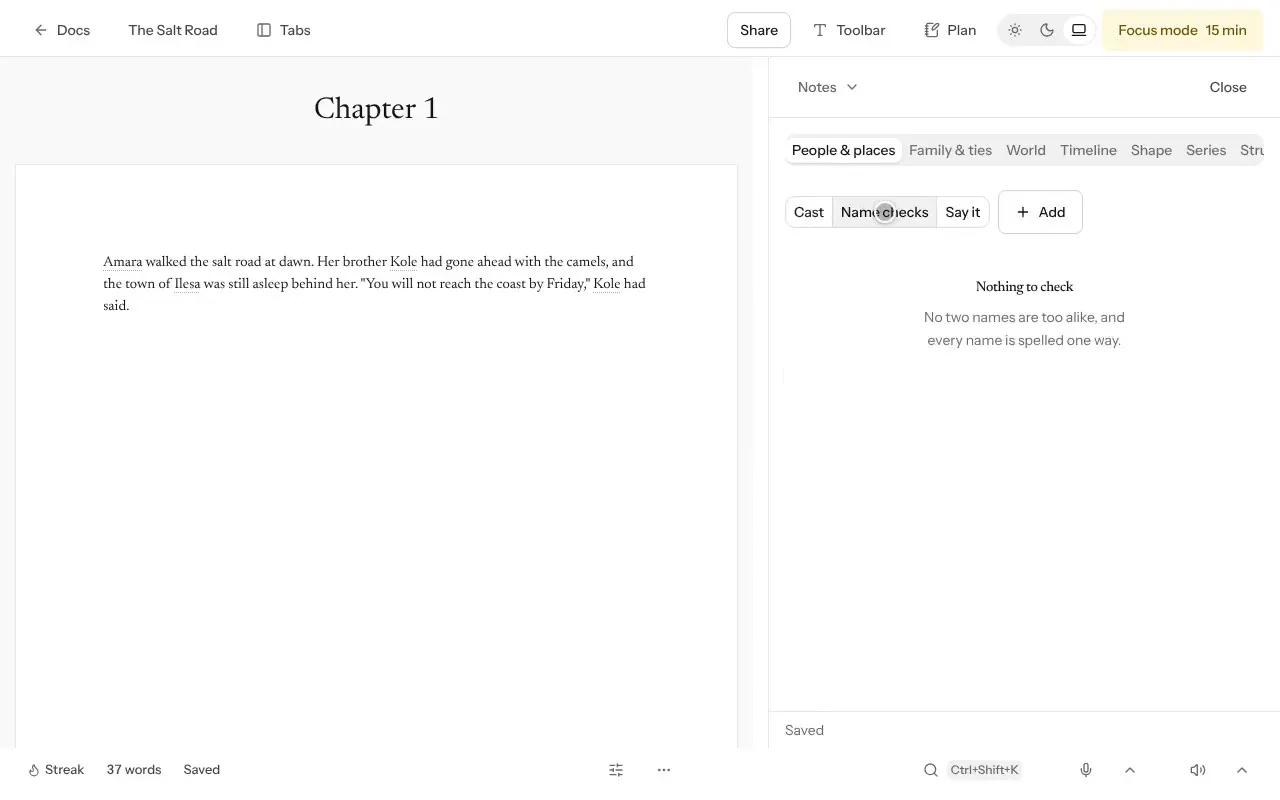
Names on your cards are underlined in the draft, and Cast shows which chapters each person appears in. Name checks flags names that look too alike or are spelled two ways. Write an interview gives you questions to answer in a character’s own voice.
Family & ties, World and Timeline hold how people are related, how the world works and when things happen. Maps & boards holds Maps and plans with pinned places, a Mood board, a Mind map and the possible Endings of the book.
Revise
In Plan, switch to Revise.
- Paste notes from an editor into Edit letter and select Create tasks. Each point becomes a task, and a chapter named in a point is linked to that chapter.
- Word habits lists the words and phrases you repeat across the book. Pacing shows how much of each chapter is dialogue, quick sentences and slow ones. Slips finds lines in a different tense from the rest of their chapter, in English for now.
- Replace changes a word or name across every chapter at once.
Before a big revision, open Readers and select Save version under Whole project. You can restore the book from that version as a copy later.
Get it ready to send
- Readers creates a reader link, so a friend can read the book and leave notes.
- Submit holds what agents and publishers ask for: the Sample, the Synopsis, Books like yours and Your bio. Select Add a submission for each call you send to.
- Export downloads the Whole manuscript in chapter order. Research and notes stay out of the exported text.
Good to know
- Docs saves as you type. The bottom bar says Saved when your work is safe.
- Select the word count in the bottom bar for pages, characters and reading time.
- Focus mode hides everything but the page for a set time.
- Download whole project keeps every chapter, note and plan in one file. Keep a copy somewhere safe.
Was this article helpful?