Write a script from start to finish
Updated November 12, 2026 · 2 min read
Docs sets scripts in industry format as you type: screenplays, TV episodes, stage plays, audio drama, animation and comics. You can plan scenes beside the page, track revisions and export to Final Draft or Fountain.
Start a script
In Docs, select New document.
Under Script, choose Screenplay, TV episode, Stage play, Audio drama, Animation, Comic or Two columns.
Replace Untitled with the script’s title.
To turn a document you already have into a script, open Toolbar, then Layout, then Script format.
Write in format
Type a scene heading such as INT. MARKET - DAWN. Docs recognizes it and sets it as a Scene heading.
- Press Enter at the end of a line to start the line that usually follows. After a scene heading comes Action; after a character’s name comes Dialogue.
- Press Tab to change what a line is, for example from Action to Character. Shift+Tab goes back.
- The line type shows at the top of the page. Select it to choose another, such as Parenthetical, Transition or Shot.
- Names and places you have already used appear in gray as you start typing them. Press Enter to accept.
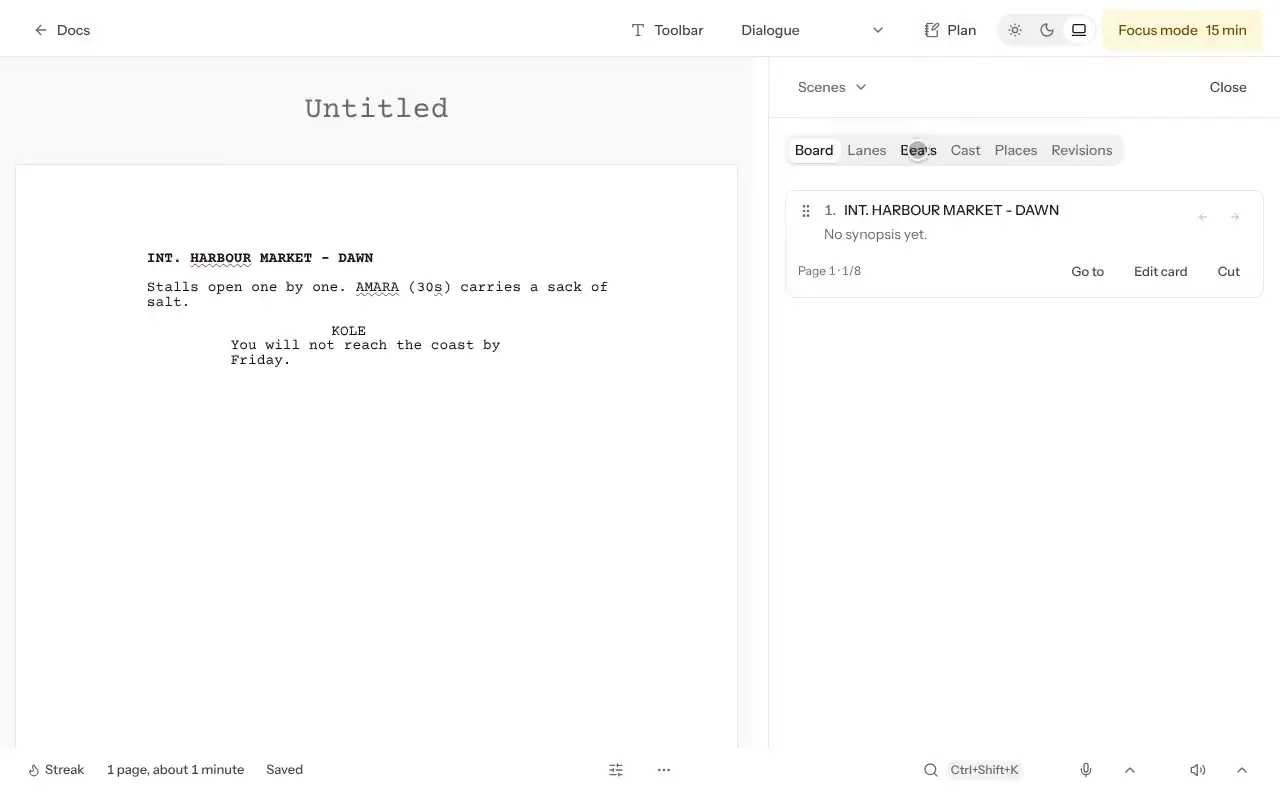
The bottom bar shows the page count and the running time, at about a minute a page.
Add a title page
Open Toolbar, then Layout, then Title page…. The title page appears before page one and goes into every exported script.
Plan scenes
Select Plan. Scenes opens beside the page.
- Board shows every scene as a card, with its page and length. Drag a card, or use its arrows, to move the scene; the script moves with it. Cut sends a scene to the trim bin, where you can bring it back.
- Lanes follows a storyline or a character through the script.
- Beats sets the pages you are aiming for. Choose a Shape, such as Three acts, and select Use this shape, or select Add a beat to build your own.
- Cast counts each character’s speeches and words, and shows the scene where they first speak.
- Places lists every location in the scene headings.
Revise
Once the script is out with readers or a production, open Revisions and select Start the Blue revision. Each line you change from then on is marked, in the color order productions use. Compare with a saved version shows what changed between drafts.
Share, send and export
- Readers creates a reader link, so others can read the script and leave notes.
- Submit sets the Pages to send and lists the Calls that take this script, so you can cut a sample to each call’s rules.
- In More, select Export…. Choose Download Final Draft, Download Fountain, Download DOCX or Print / PDF.
- Sides prints the scenes an actor reads, with every other line on their pages crossed out.
- Reports gives you a breakdown of the script to print or download as a spreadsheet.
Good to know
- Check the scene order on Board before you export.
- Read aloud reads the script back to you, so you can hear the dialogue.
- Focus mode hides everything but the page for a set time.
Was this article helpful?